A data destination outputs data from Chioro. It writes or sends the data to a downloadable file or an external endpoint and converts it to the desired target format when executed.
Data destinations effectively represent the endpoints of a flow. In order to continue using the data, after Chioro has processed it, each flow contains at least one data destination.
The configuration of a data source includes two main aspects:
- Where should the data be exported to?
- In what format should the data be exported?
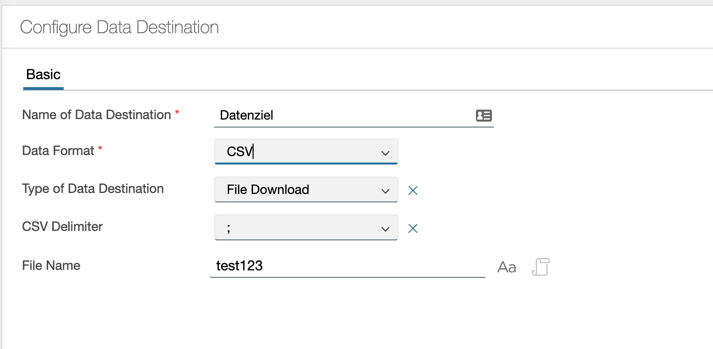
Type of the data destination
Currently there are three basic ways to export product data to Chioro:
- Downloading a file via the browser. Mainly intended for testing and playing.
- Remote file. Direct (push) access to data via a number of protocols. SFTP, S3 and Azure among others.
- API Push. Using the Push API, it is possible to actively send data to a destination. See below for more details.
File to download
If this type is selected, after clicking Export, a link in blue will appear to fetch the file to the local computer.
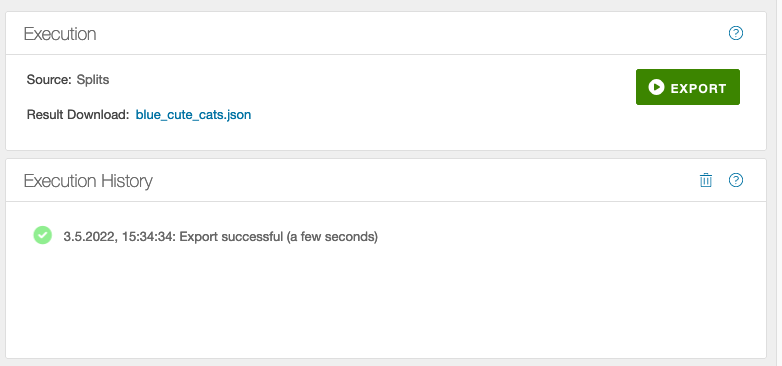
- Note that downloading is only useful for smaller files up to about 100 MB.
Remote file
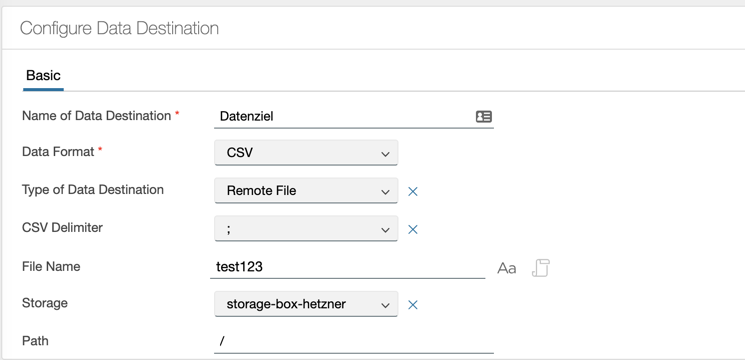
For direct access to a remote file, an endpoint is selected in the Storage field.
The Path field then specifies the path of the file(all the directories) to be used relative to the Storage root. In case the Storage is AWS, the
path always start with the bucket name follows by the directory structure inside the storage. Please note that all the directories specified should
exist prior to execution, otherwise Chioro will refuse to write the file.
File Name field is mandatory and denotes the name of the generated file, if not specified the file name will be similar to the name of the Data Destination.
Endpoints represent a kind of “base URL”. Since they usually contain confidential information like passwords or API keys, their configuration is done in the admin area. Admin rights are required for this. Please contact your Chioro administrator or our Support if you do not have the appropriate rights.
Data formats
Currently Chioro supports the following export formats:
- JSON
- Excel (xlsx)
- CSV
- Commerce Tools
- SAP hybris
- Template, here any data can be inserted into templates and output. Exact explanation see below.
- as well as user specific formats, if they are activated.
For other, e.g. user-specific data formats, please contact our Support.
Filename
It is possible to enter an own name of the file to be exported. On the one hand, you can enter a normal text and the file will be named after it.
Example:
Data format = CSV;
Filename = test123;
The final filename is “test123.csv”
On the other hand you can enter a script as name. Here you can use all tools that are delivered or apply all Javascript functions.
Example:
Data format = CSV;
Filename = "test" + timestamp();
The final filename is “test202210200149.csv”
Templates
The “Template” data format allows you to create arbitrary file formats. The output is based on Handlebars templates, where placeholders are replaced with values from the data records.
Structure
A template consists of three sections:
- Template Header — written once at the beginning of the file.
- Template Body — repeated for each data record. Columns can be used as placeholders, e.g.
{{Lastname}}. - Template Footer — written once at the end of the file.
Additionally, a line separator is configured (e.g. /r/n). This separator is inserted exclusively between body rows — not after the header and not before the footer.
The resulting file has the following structure:
[Header][Body 1][Separator][Body 2][Separator][Body 3][Footer]
Example
Body template: Good evening Mr. {{Lastname}}
Line separator: /r/n
Result:
Good evening Mr. Miller
Good evening Mr. Smith
Good evening Mr. Johnson
This is comparable to mail merge generation from common Office packages.
Handlebars Helpers
In addition to column placeholders, helper functions are available in templates. They are called with {{helperName}} or {{helperName parameter}}.
| Helper | Usage | Description |
|---|---|---|
now |
{{now}} |
Current timestamp in ISO format |
date |
{{date Column}} |
Formats a date as dd.MM.yyyy HH:mm:ss |
equals |
{{#if (equals Column 'value')}}...{{/if}} |
Compares two values for equality |
hasPrefix |
{{#if (hasPrefix Column 'prefix')}}...{{/if}} |
Checks if a value starts with a given text |
removePrefix |
{{removePrefix Column 'prefix'}} |
Removes a prefix from the beginning of a value |
toJson |
{{toJson Column}} |
Outputs the value as a JSON string |
withPipe |
{{withPipe Column}} |
Joins a list with pipe characters (|) |
translate |
{{translate Column locale='de-DE'}} |
Translates a value using the configured i18n files |
newline |
{{newline}} |
Inserts a line break (default: \r\n) |
newline
The newline helper is particularly useful in header and footer templates, since the configured line separator is not automatically inserted there.
| Call | Result |
|---|---|
{{newline}} |
\r\n (CRLF, default) |
{{newline "\n"}} |
\n (LF) |
{{newline "\t"}} |
Tab character |
Example: A header template that ends with a line break:
Firstname;Lastname;City{{newline}}
DynamoDB
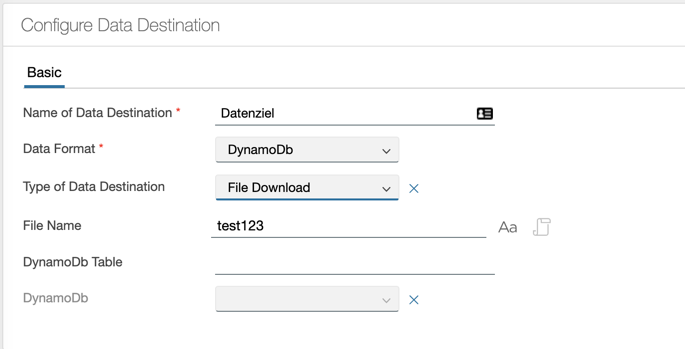
By the usage of a DynamoDB as data destination it is important to write the name of the table correctly, Type of Destination must be File Download and in the fields of the export, the keys defined in the table schema have to be set and unique (in the context of the flow/export step).
Entries with keys that are already used in the table will replace the entries fully in the DB.