Overview
Chioro provides the ability to include tools that reside in a Git project. A template can be found here. Creating and testing one or more tools is described in the readme there.
The chioro-toolbox with the standard tools is always available. On the tab tools the currently mounted libraries are listed in the upper half.
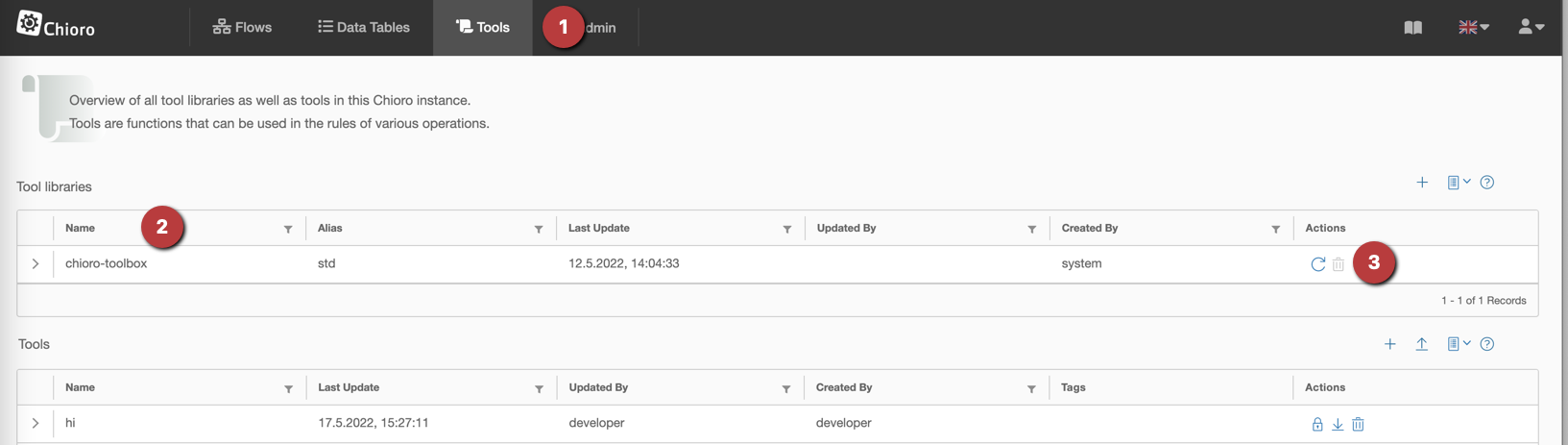
- Click on the Tools tab to see a list of mounted libraries.
- The name of the library: this name must match the name in the package.json file in the git repository.
- Here the library can be updated or deleted. Since the libraries are only loaded automatically when the Chioro server is restarted, after changing the tools in Git, the update must be triggered manually here.
Mount new library
After clicking on the plus sign the following window opens:
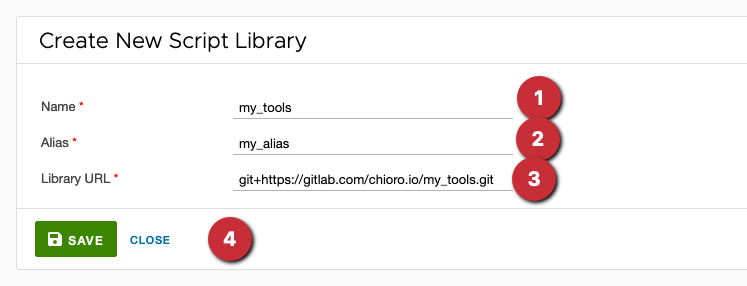
- The library name must exactly match the
namefield in the Git repository’spackage.json. It is not a freely chosen display name. - Use the alias to call the library in rules. It must be a valid JavaScript identifier, such as
my_toolsormt, without spaces or hyphens. - Enter the Git repository URL, for example
git+https://github.com/organisation/toolbox.git. - For private GitHub repositories, select the appropriate Authentication configuration. Leave this field empty for public repositories.
- Click Save. Chioro loads the library and its tools.
Private GitHub repositories
Loading a private toolbox requires only a Fine-grained Personal Access Token, restricted to the relevant repository, with these repository permissions:
| Permission | Access |
|---|---|
| Contents | Read-only (contents:read) |
| Metadata | Read-only (metadata:read) |
Write access is not required to load or update a toolbox.
- Create a token in the GitHub fine-grained token settings. Select the repository owner as the Resource owner and select the toolbox repository under Repository access → Only select repositories. Set the permissions listed above.
- In Chioro, open Administration and create a configuration of type GitHub Personal Access Token. Enter a name and the token. No username is required in this form.
- Select this configuration in the tool library’s Authentication configuration field.
- Use the HTTPS library URL, for example
git+https://github.com/organisation/toolbox.git. Chioro reads the token from the selected admin configuration; no token is entered in the tool library. - Save the library. To reload an existing library, use the refresh icon Reload library.
See the GitHub documentation for details on creating and managing tokens.
If Cannot load module appears, compare the library name with the name field in package.json. For example, a package with "name": "my-toolbox" must also be named my-toolbox in Chioro; its alias can independently be mt.
Using the tool in a rule
Prerequisite in this example: Name of the library my_tools with alias mt, there is a tool called happyFunction :
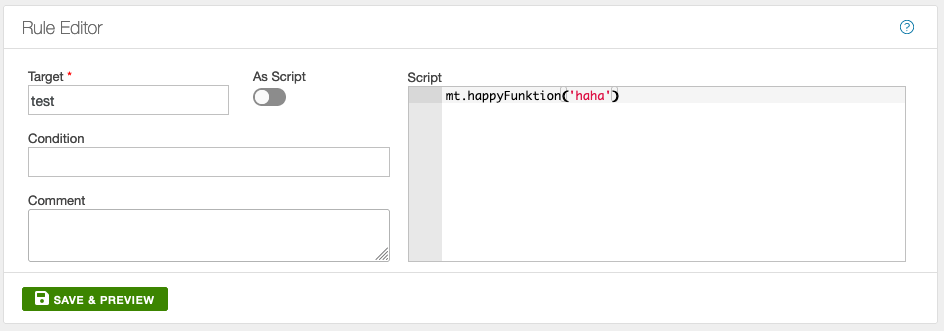
As can be seen, first the alias is named, followed by a dot and the actual call of the function. After Save & Preview the result of the rule can be checked, as usual.
The tools can of course also be found in the tool list under Utilities and can be dragged and dropped into the rule editor.